Looking to spice up your conversations? Twitter, Facebook, and Gmail all support UTF-8 Unicode special characters. These UTF-8 special characters are symbols that don’t appear on a standard keyboard but are recognized by most devices, websites, and applications. They're useful for adding a little extra character to your text, and a few social networking websites and tools like Facebook and Gmail allow you to add even more colorful emoticons to your messages. With this guide I’ll show you how to quickly find and add special characters and emoticons to make your Twitter, Facebook, and Gmail messages more lively and personal. WARNING: This page is jam-packed with examples of emoticons and special characters that may look odd in your Web browser.
Use Twitter Special Characters via Bookmarklets
2. Drag the links you’ll find on these Web pages onto your Bookmarks bar (Firefox or Chrome) or Favorites bar (Internet Explorer). Note: The links may not work with all versions of these browsers.

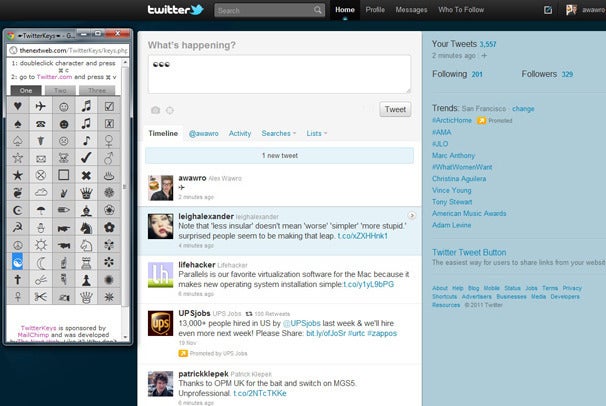
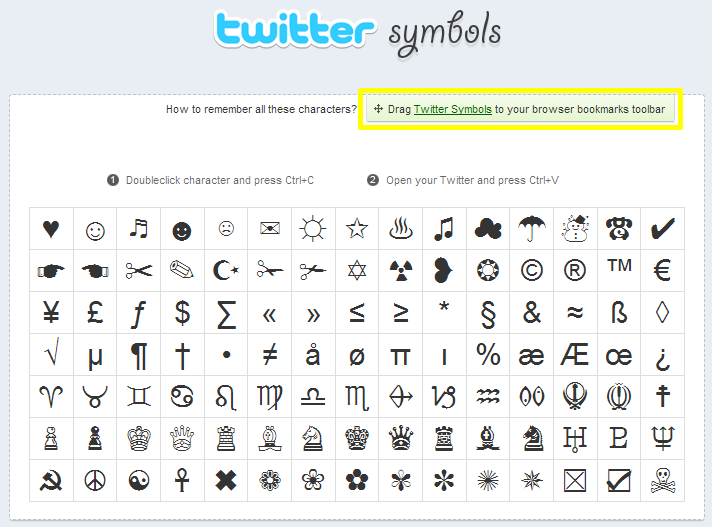
 Use the TwitterKeys applet to spice up your Twitter posts with special characters and symbols.
3. Click the newly created bookmark. If nothing happens, make sure a pop-up isn’t being blocked.
4. Double-click to highlight any symbol in the pop-up window, then copy (-C) and paste (-V) the symbol from the window into a Twitter message.
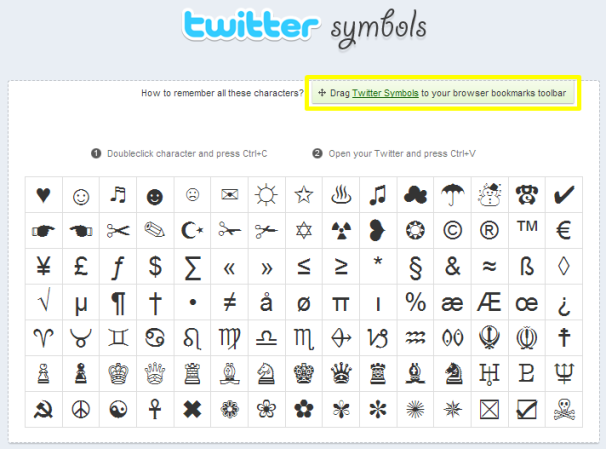 Twitter Symbols
Use Special Characters on Twitter by Pasting From the Web
You can find plenty of free character maps online where you can copy and paste a special character from a Web page into a Twitter message. Here are some to get you started:
♈ ♉ ♊ ♋ ♌ ♍ ♎ ♏ ♐ ♑ ♒ ✐ ❂ ♓ ☨ ☧ ☦ ✁ ✃ ✄ ✎ ☬ ☫ ❉ ❆ ♅ ♇ ♆ ♙ ♟ ♔ ♕ ♖ ♗ ♘ © ® ™ … ∞ ≤ ≥ « » ç ∫ µ ◊ ı ¥ € £ ƒ $ º ª ‽ ♤ ✈ ♪ ☤ ♀ ☾ ☝ ♖ ✽ ☯ ♥ ☺ ♬ ☹ ☑ ✩ ☠ ✔ ✉ ♂ ✖ ✏ ♝ ❀ ♨ ❦ ☁ ✌ ♛ ❁ ☪ ☂ ★ ✇ ♺ ☭ ☃ ☛ ♞ ✿ ☮ ♘ ✾ ☄ ☟ ✝ ☼ ☚ ♟ ✺ ☥ ✂ ✍ ♕ ✵ ☉ ☇ ☈ ☡ ✠ ☊ ☋ ☌ ☍ ♁ ✇ ☢ ☣ ✣ ✡ ☞ ☜ ✜ ✛ ❥ ♗ ♚ ♛ ♜ ♝ ♞ Ω ≈ * § ∆ ¬ † & æ π ¡ ¿ ø å ∂ • ¶ œ Æ ß ÷ ‰ √ ª % ♠ ☎ ☻ ♫ ☒ ˚ ¯ º ‽ ≠ ˆ ˜ ˘ ∑ ƒ
Put Special Characters in Twitter With the Windows Character Map
1. Click Start, open your list of All Programs, and open the Accessories folder. Navigate to System Tools and open the Character Map program.
2. Select a font from the list.
3. Check the Advanced view box.
4. In the Character set list, select Unicode.
5. In the Group by list, select All to browse all available characters by font, or select Unicode Subrange to browse characters by category.
6. Collect characters by highlighting them and clicking Select. When you are finished collecting, clickCopy to copy the characters to the clipboard. You can now paste them into your message.
Use Facebook Emoticons
Here is the complete list of Facebook Chat emoticons and what character combinations create them. Note that these currently only work in Facebook Chat and will not display correctly in Facebook status updates or comments.
Smile :-) :) :] =)
Frown :-( :( :[ =(
Tongue :-P :P :-p :p =P
Grin :-D :D =D
Gasp :-O :O :-o :o
Wink ;-) ;)
Glasses 8-) 8) B-) B)
Sunglasses 8-| 8| B-| B|
Grumpy >:( >:-(
Unsure :/ :-/ :\ :-\
Cry :'(
Devil 3:) 3:-)
Angel O:) O:-)
Kiss :-* :*
Heart <3
Kiki ^_^
Squint -_-
Confused o.O O.o
Upset >:O >:-O >:o >:-o
Pacman :v
Curly Lips :3
Robot :|]
Chris Putnam :putnam:
Shark (^^^)
Penguin <(")
42 :42:
Using Emoticons in Gmail, Gchat, and Other Google Services
To unlock all available emoticons in Gmail:
1. Click the Gear icon in the top right corner, then click Labs.
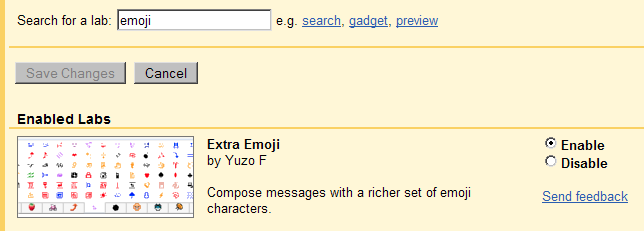
2. Type emoji in the Search for labs box.
3. Enable Extra Emoji and click Save Changes.
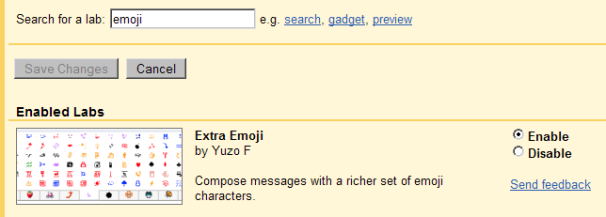 Enable the Extra Emoji option in Google Labs.
4. When composing a message, click the Insert Emoticon symbol to browse. Click any symbol to insert it into your message. You must be in rich formatting mode to insert emoticons.
In GChat, some emoticons are easy to select, but others are hidden:
1. Click the Gear icon in the top right corner, then click Mail Settings.
2. In the Chat tab, select Emoticons on at the bottom. Click Save Changes.
 Switch on emoticons in the Chat tab.
3. Open a new chat window and click the emoticon in the corner to browse GChat emoticons.
Nice job! One final tidbit: The emoticons listed in the GChat window aren’t all that are available. Here is a top-secret list of hidden GChat emoticons:
Devil }:-)
Moustache :{
Robot [:|]
Poo ~@~
Rock Out \m/
Monkey :(|)
Bell +/’\
Crab V.v.V
Wince >.<
Broken heart </3
Pig :(:)
Kiss :-x