See, when you download something like the Windows 8 Developer Preview (which anybody can check out, not just developers), you're left with an ISO file that must be burned to a DVD before you can actually install it. Or must it?
The Windows 7 USB/DVD Download Tool lets you copy that ISO file to a flash drive, then use that drive to install Windows. And don't let the name fool you: although the 1MB utility says it's for Windows 7, it works like a charm with Windows 8. (Also notwithstanding its name, there's no real downloading involved.)
For this task you'll need a flash drive with at least 8GB of available storage. The utility will necessarily erase everything on the drive as part of the setup process, so make sure you've offloaded any important data. You'll also need to have downloaded the Windows 8 Developer Preview if you haven't already. I recommend the x64 version without the developer tools, though you may want to choose the x86 version if you're planning to install it on an older PC with limited RAM (i.e. 3GB or less).
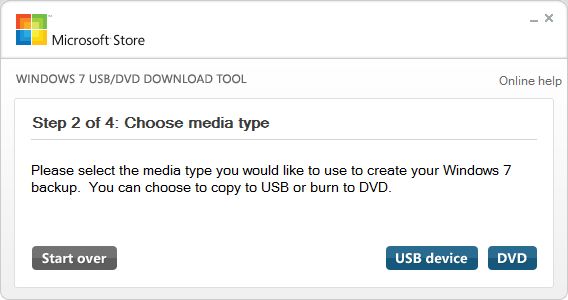
Once you run the utility, it's a simple four-step process to select the ISO file, wipe the USB drive, make it bootable, and load Windows 8. So simple, in fact, that I'm not going to reiterate the steps here. But allow 10-20 minutes for the job to finish.
When you're done, you can "safely eject" the drive, then pop it into whatever PC is going to be your Windows 8 guinea pig. (If you have trouble booting from the drive, consult your manual; you may need to tweak the BIOS settings.)
I'm sorry to say you can't actually run Windows 8 from the flash drive like you can some versions of Linux; you'll have to go as far as to install it. But it'll be a lot faster going with the flash drive than it would be with a DVD. Plus, you can load it on a netbook, ultrabook, or any other system that lacks an optical drive.

Every now and then I come across great PC tips and share them with you. A few months back I told you how to put Linux on a USB drive (and why you'd want to), and how to bypass Windows Updates. Today I've found some interesting research on using Sleep Mode (vs. leaving a PC running), plus a great tip on how to quickly remove USB devices without hassling with the "Safely Remove Hardware" routine.

Leave Your PC Running? Put It to Sleep and Save Cash

When it's time to turn in for the night, what do you do with your PC? Turn it off? Leave it running? Put it in standby (aka sleep) mode?
There are different schools of thought on which is best. For example, some feel that the startup and shutdown processes create extra wear and tear, and therefore opt to leave their machines running 24/7.
According to Iolo Labs, which recently completed some studies on the subject, sleep mode wins the day (make that night). Their findings:
1. When you put your PC to sleep at night instead of leaving it running, you save $2 per month.
2. When you put your PC to sleep at night instead of turning it off, you save at least 25 minutes per month (in startup and shutdown time, I'm guessing), while spending only an extra five cents monthly.
I'm waiting to hear back from an Iolo rep on whether hibernate mode was considered in this study, as that would save you some startup/shutdown time and save you money as well.
(When your computer is in standby, it continues to draw a bit of power. In hibernate, however, it's effectively off.)
In any case, I think there's something to be said for pocketing an extra $24 annually just by putting your PC to sleep at night. And as someone who has long been annoyed by annoyingly long boot times, there's much to be said for resuming your work session almost immediately, right where you left off.


When using the Google search engine your system gets redirected to advertisement and potentially malicious websites. Your computer additionally looks to run abundant slower than usual. If infected you must deduct Google Redirect Virus as soon as doable.
Although it will be painfully annoying to constantly be redirected within the search engines, there’s a larger danger to the Google Redirect problem. generally you’ll be forced onto malicious websites that are loaded with spyware and viruses. this is often often what is called browser hijacking. you are redirected to these dangerous websites and that they load up your system with malware.
Once these things is loaded on your computer (usually without knowing), you may become the victim of identity fraud. This malware uses spyware to record non-public information like mastercard numbers, social security numbers, and private passwords.
All you have have to be compelled to do is to upload the removal software, scan the corrupted files by following the step-wise directions and remove the Virus. you wish to observe out before gap suspicious websites and take immediate action when you discover symptoms of malicious websites gap in your browser.
When removal clear your browser cache and restart the pc. for people who may not be computer consultants and are looking for an improved answer, you’ll really remove Google Redirect Virus with certain software. merely scan your pc, follow the instructions, and perform a Google Virus removal in minutes.
Have you been infected with the Google Redirect Virus? you’re potentially well alert to the symptoms. for more information please visit remove redirect virusand google redirect virus removal tool